
 By Lazy Latte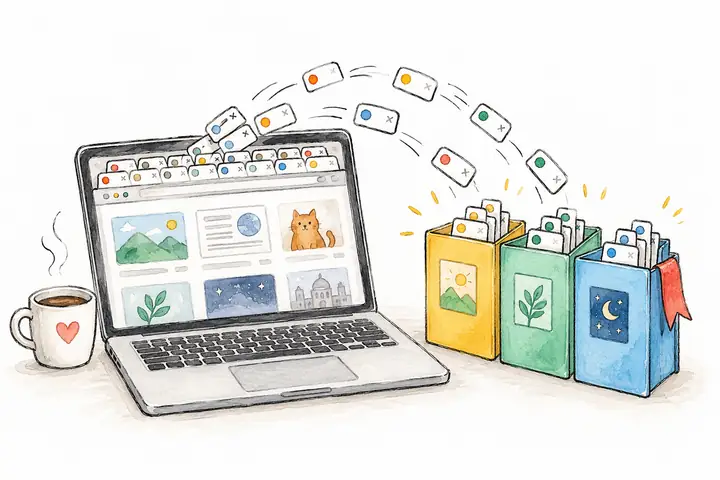
There is a particular kind of optimism in an open browser tab. You will read that essay. Compare those hotels. Try that useful little tool. Eventually. Meanwhile, the tab stays there, quietly holding your place in a future afternoon.
At some point the titles disappear and the browser becomes a row of tiny clues. A useful bookmark system gives those discoveries somewhere to live, with enough context that you can recognise them later. Here is a small setup you can start today and maintain over coffee.



Give today's tabs a home
Start with the window in front of you. Close the tabs you have finished with. Save the links you want to return to in a dated folder, such as “Inbox / 6 October”. Keep open the few pages you are actually using.
For a whole-window rescue, Firefox can bookmark all open tabs, and Edge can add open pages to favourites. Open the saved folder and check that the links are there before closing the originals.
One detail: A regular bookmark saves a link. Save unfinished drafts or form entries separately; reopening the address may not bring that work back.
Start with three folders
Three broad folders are enough to give each new link a likely home. You can add a subfolder when a real project needs one.
- Inbox: New discoveries you have not decided about. The article you might read, the interesting recipe, today's rescued tabs.
- Projects: Links for something you are doing. “Lisbon weekend”, “Kitchen shelves” or “Learning photography”.
- Keep: Things you expect to reuse. A favourite calculator, a useful reference, a website that reliably makes your afternoon nicer.
A hotel comparison belongs with the trip. A bill-splitting tool you use for several trips belongs in Keep. A promising place you have not looked into yet can wait in Inbox. These decisions should take seconds.
Name things for future-you
A page called “Home” will not remind you why you saved it. Try “Split Bill Calculator - weekend expenses”. Replace a vague shop title with “Kitchen shelves - narrow oak option”. Include the subject and the reason you cared.
Choose words you would naturally type when looking for it. In Chrome, for example, you can type @bookmarks in the address bar, press Tab or Space, and search your saved links. Google's bookmark guide covers search, folders and renaming.
A little naming effort when you save a link is easier than trying to remember its original headline three months later.
Pick one place to save
Your browser's bookmarks are a good first choice. Make the three folders there and try them for a week. Keep a handful of frequently used sites on the bookmarks bar so they are easy to reach.
Raindrop.io suits a collection you want to browse beyond one browser. Its collections work like folders, while tags let a bookmark carry several labels. A photography guide could live in Projects and have a “to-read” tag. The free plan includes unlimited bookmarks and collections; extras such as full-text search and web archives are on Pro.
OneTab is handy when you want to put away a busy browsing session. It turns open tabs into a list you can restore individually or together. Its help page explains how to organize saved tabs. Give an important group a recognisable name.
Choose one main home for your lasting bookmarks. A link is harder to find when it could be in any of four apps.
Keep the pile moving
Once a week, open Inbox and look at a small handful of links. Read one, move a useful one into Keep, send a relevant one to a project, or delete something that no longer interests you.
You do not owe every saved article an evening. A bookmark can simply mean “this looked interesting at the time”. When a project finishes, move its reusable links into Keep and decide whether the rest deserves an archive.
Before a large clear-out or a move to another tool, make an export. Firefox offers an HTML bookmark export, and Raindrop.io and OneTab also provide export options. Check the exported file before relying on it.
Try a ten-minute reset
Put the kettle on and try this with your current window:
- Create Inbox, Projects and Keep in your chosen bookmark home.
- Close the tabs you no longer need, after saving any unfinished work.
- Save the interesting leftovers to Inbox and check the saved links.
- Give three vague titles a name you could search for.
- Move one useful link into Keep and one into a current project.
- Leave open the pages you need for your next task.
Stop there. The older collection can wait until you have tried the new system with a few fresh finds.
Keep the curiosity. Find the link.
A good bookmark system makes room for curiosity. You can still follow an unexpected link, save a lovely discovery, and wander off for a while. The useful part is knowing where to look when you want it again.
Try it with a find from the JustOneMoreTab collection, or make a project folder for your next travel daydream. Give it a home and a name. Then enjoy the small satisfaction of closing the tab.
Before you save one more
What is the simplest way to organize bookmarks?
Start with Inbox for new discoveries, Projects for current plans and Keep for links you expect to reuse. Rename vague titles and review a few items regularly.
Do I need a separate bookmark manager?
No. Your browser's built-in bookmarks are a good starting point. Consider a separate tool when you need a specific extra, such as Raindrop.io's collections and tags or OneTab's saved tab lists.
Does bookmarking a tab save everything on the page?
A regular bookmark saves a link, not a complete copy of the page or your unfinished work. Save drafts and form entries separately before closing their tabs.
